After copying private information, review the new destinations as well as the original chat.
You copy an address from a private chat, paste it into a map and carry on. The message may have travelled with end-to-end encryption, but the copied address now has a separate life on your phone. A clipboard preview, a keyboard's saved clips and the destination app are different places to check.
Copying does not mean the encryption failed. It means readable information has moved between applications after decryption. This guide explains Android's protections and a practical way to reduce unnecessary copies without assuming that every installed app can read everything.
Follow the copy, not just the original message
Android's clipboard framework can move text between apps. A normal text clip contains the text itself; other types can contain a reference to data. The system clipboard holds one clip object at a time, but a keyboard or another app may maintain its own saved history. Replacing the current clip is therefore not a universal deletion command. Android's copy-and-paste framework.
| Place to check | What may be present | What clearing the current clipboard does not establish |
|---|---|---|
| System clipboard | The current copied item | That another app never read it |
| Keyboard clipboard history | Saved or pinned clips, if supported | That those separate entries were removed |
| Cross-device clipboard service | A synced copy, if enabled | That another device has no retained copy |
| App where you pasted | A draft, search, note or sent message | That the destination deleted what it received |
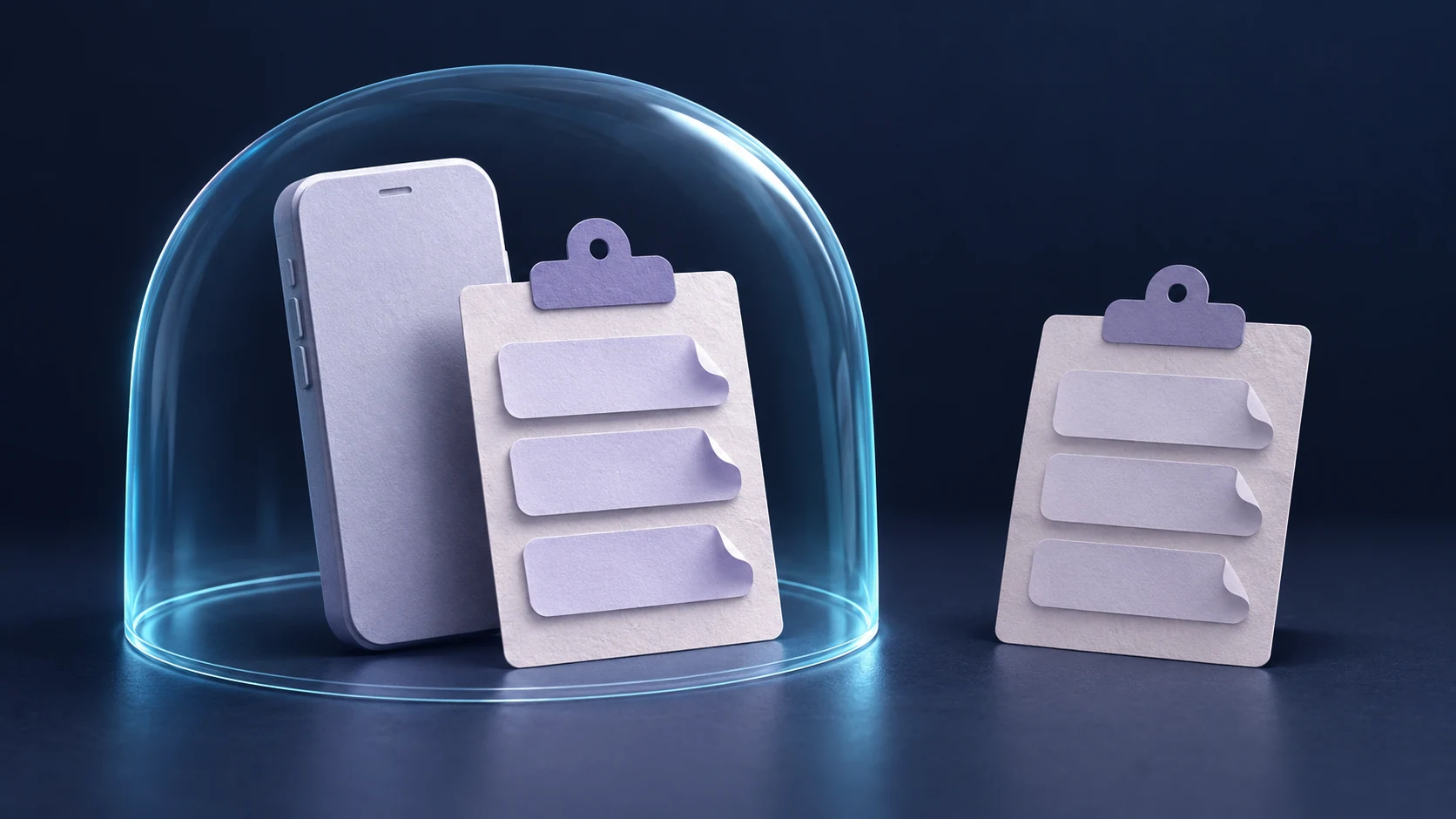
Treat this as a map of possible copies, not a claim that all four exist on every phone. Your Android version, keyboard and enabled services determine the actual path.
What Android's protections do—and do not do
Android 10 and later restrict ordinary app access. An app generally needs current input focus or to be the default input method, such as the selected keyboard, to access clipboard data. The older claim that any background app can freely read the clipboard is not an accurate description of these newer restrictions. This is an access boundary, not proof that the selected keyboard or focused app is trustworthy. Android 10 privacy changes.
Android 12 added clipboard-access notices. A notice can tell you that an app accessed copied data from another app. It does not establish that the data was uploaded. There are exceptions, including metadata-only checks and some repeated accesses, so the absence of a notice is not a complete access log. Android 12 behavior changes.
Android 13 added standard copy previews and automatic clearing. These reduce unnoticed copying and the time a clip remains available. Do not turn that into a promise that all saved clips disappear at a fixed time. Google's security guidance describes automatic clearing from Android 13; it is not a remote-erasure guarantee for information already copied elsewhere. Android's secure-clipboard guidance.
Apps can mark copied content as sensitive with EXTRA_IS_SENSITIVE to suppress its visible preview on Android 13 and later. Hiding the preview does not encrypt the text or prevent every otherwise-authorized clipboard reader from accessing it. Whether a particular messenger sets that flag needs separate evidence. Android's sensitive-content guidance.
Keyboard history and cloud sync are separate checks
Gboard's official help says clipboard history clears shortly after use, but pinned text is excluded. Open the keyboard's clipboard panel and inspect saved and pinned entries rather than assuming the system's current clip is the whole story. That is a Gboard-specific example, not a rule for every keyboard. Gboard clipboard help.
Cross-device sync adds another destination only when the relevant feature is enabled. Microsoft documents Cloud Clipboard for SwiftKey and Windows, including its account and sync controls. It also distinguishes hiding a recent clip in the prediction bar from turning off synchronization. Microsoft states that this clipboard data is encrypted in transmission; the issue here is an additional authorized destination, not an assertion that sync travels unencrypted. Microsoft's SwiftKey Cloud Clipboard instructions.
For the broader question of what your input method can see while typing, read our Android keyboard privacy guide. Clipboard retention is one part of that larger device-side boundary.
A harmless rehearsal before handling real secrets
Consider this fictional example. Mina needs to copy a meeting address from an encrypted chat. Before using sensitive information, she tries the same workflow with the made-up phrase “violet notebook 47.”
- She copies the phrase and observes whether a preview appears. Its appearance or absence tells her about that copy action, not the entire app's security.
- She pastes into a local test note, then checks the keyboard's clipboard panel for a saved or pinned entry.
- If she intentionally uses cross-device clipboard sync, she checks her own paired computer for the test phrase. She does not enable a new service just for this test.
- She removes the test note and any saved or pinned entries using the controls available on those apps. She clears or replaces the current system clip, then checks again.
This rehearsal reveals visible retention and confusing settings. It is not a forensic audit and cannot prove that no hidden copy exists. Never use a real password, recovery phrase, customer record or private message as test data.
A safer copy-and-paste routine
- Copy only what you need. Prefer the address alone to a whole conversation containing names, access codes and unrelated details.
- Check the destination before pasting. Confirm the app, account and recipient. A search field or cloud note can have a different retention policy from your messenger.
- Avoid keeping secrets pinned. Review your keyboard's saved clips and any clipboard-manager history. Remove entries you no longer need through their own controls.
- Review cross-device sync deliberately. Disable it if it does not fit your needs, and check existing copies separately. Turning a feature off is not evidence that every earlier copy was erased.
- Reduce persistence after use. Clear the current clip where a control exists, or replace it with harmless text. Then review keyboard history and destinations separately; overwriting alone is not secure erasure.
- Keep the system and keyboard updated. Read the controls on your actual phone. Manufacturer interfaces and keyboard versions vary; there is no single universal “delete all clipboard copies” button.
If you pasted into the wrong place
First establish what happened. Was the text only in an unsent draft, submitted to a service, or sent to another person? Remove the visible copy where possible, but do not assume deletion recalls what another service or recipient already received.
If the exposed item was an access credential, use that service's official controls to revoke or replace it as appropriate. If it was someone else's confidential information, follow the applicable reporting process. Clearing the clipboard afterwards prevents some further accidental pastes; it does not undo the first disclosure.
Applying this to Livara
Livara's published security documentation explicitly does not promise protection for an unlocked or compromised device. The clipboard question is narrower: what happens to readable content once you choose to copy it out of a conversation? This article does not claim that Livara implements a particular clipboard timeout, sensitive flag or keyboard-history control. Check the client you actually use and its current documentation.
The useful habit is simple: after copying private information, review the new destinations as well as the original chat.