A friend asks, “Where should we meet?” Sending a place name may answer the question. Sending a live location can reveal where you go afterward. Before tapping Share, decide whether the other person needs a destination, your position at one moment, or continuing updates.
This is a practical sharing checklist, not a claim that any particular messenger offers live location or guarantees privacy.
A pin and a live share answer different questions
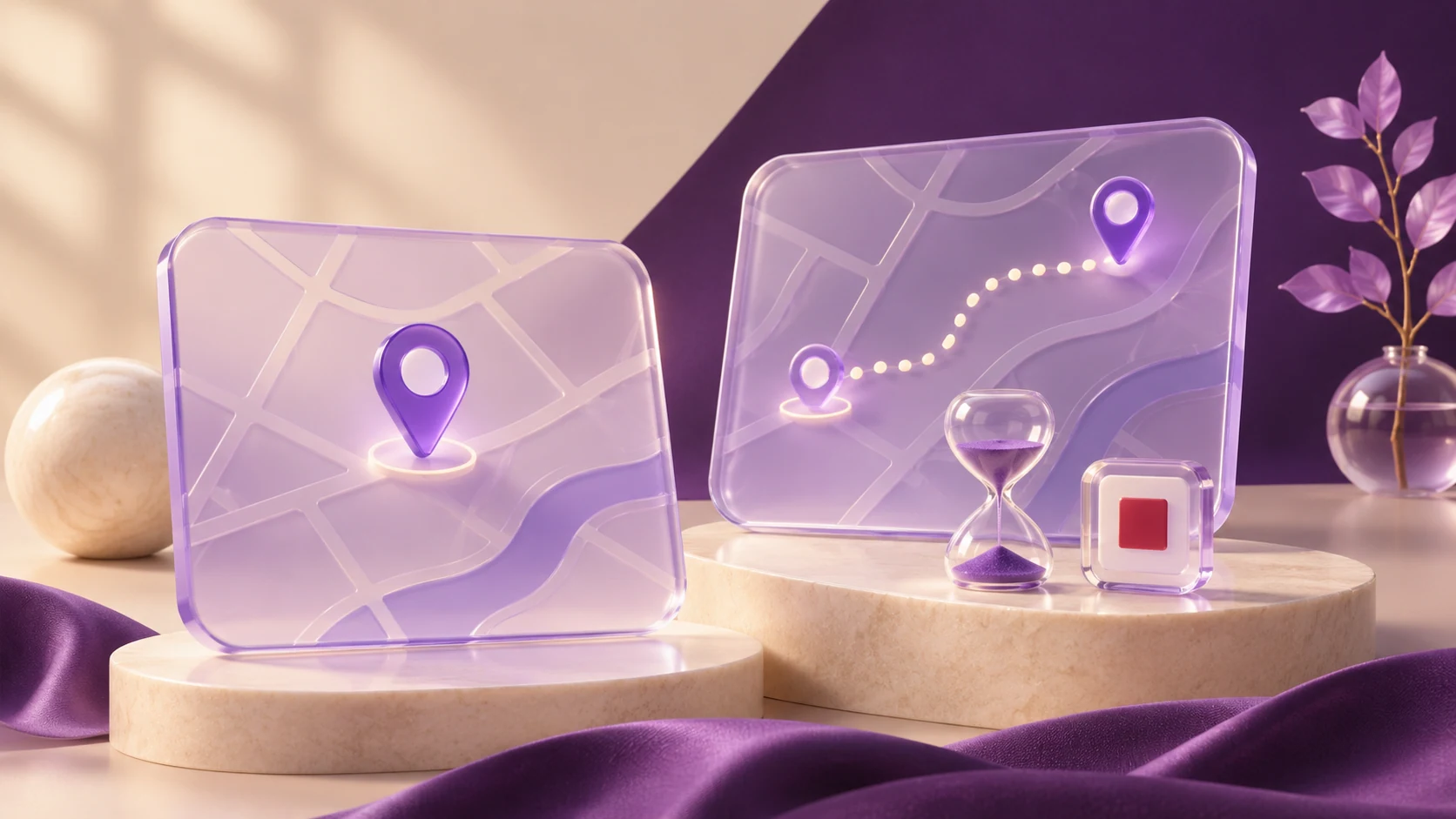
Apple distinguishes a one-time location pin from ongoing Live Location. A pin shows the selected moment; ongoing sharing lets recipients follow movement. Its sharing controls offer limited durations as well as indefinite sharing. Read the actual option before confirming, especially in a group conversation. Apple’s location-sharing guide
Use this decision rule:
- Meeting place: send the public venue’s name or address.
- Finding each other now: consider a one-time pin.
- Following progress during a trip: consider a short live share with the intended person, then check that it ends.
These are data-minimization choices. A static pin can still disclose a sensitive home or workplace, so “not live” does not mean harmless.
Phone permission and the recipient list are different controls
On Android, an app’s location permission controls its access and timing; precise-location access can also be adjusted where supported. Labels vary by device and software. Review the app’s permissions rather than assuming every request requires permanent access. Android permission guidance
Separately, Google says changing an individual Google app’s location permission does not stop Google Location Sharing. On supported Android devices, open Settings → Location → Location services → Google Location Sharing, review the people listed, and use Stop for the relevant person. Google also distinguishes pausing updates from removing previous shares. Check the correct device and account. Google Location Sharing controls
Do not treat “permission changed” as proof that nobody remains on a sharing list.
Worked example: meeting outside a café
Imagine meeting a friend at a public café at 6 pm. The goal is to find the entrance, not share the journey home.
- Send the café address first. Ask whether that is enough.
- If a position is needed, check that the selected option is a one-time pin, not continuous tracking.
- If you choose live sharing, confirm the recipient and a duration that fits the meeting. Avoid a group when only one person needs it.
- After meeting, open the service’s sharing controls. Confirm that the relevant share ended or stop it explicitly.
- If you also used another account or service, review that separately.
This example is a recommended workflow, not a description of controls available in every app.
Closing or deleting the app is not a reliable stop check
Apple specifically warns that deleting Find My does not end existing location sharing. Use its sharing controls instead. Apple’s stop-sharing instructions
A stopped share cannot make another person forget an address or erase a screenshot already taken. For sensitive situations, consider what has already been disclosed as well as whether updates continue. If someone may react dangerously to a change, prioritize personal safety rather than assuming a change will go unnoticed.
Before sending: four questions
Who will receive it? How much precision is needed? How long should it last? Where will you verify that it stopped?
For the next location request, start with the least revealing option that solves the problem. In Livara or any other messenger, check the actual feature and any linked mapping service rather than assuming chat encryption controls an external location share.
Before your next location share, check the recipient, precision, duration and stop control.