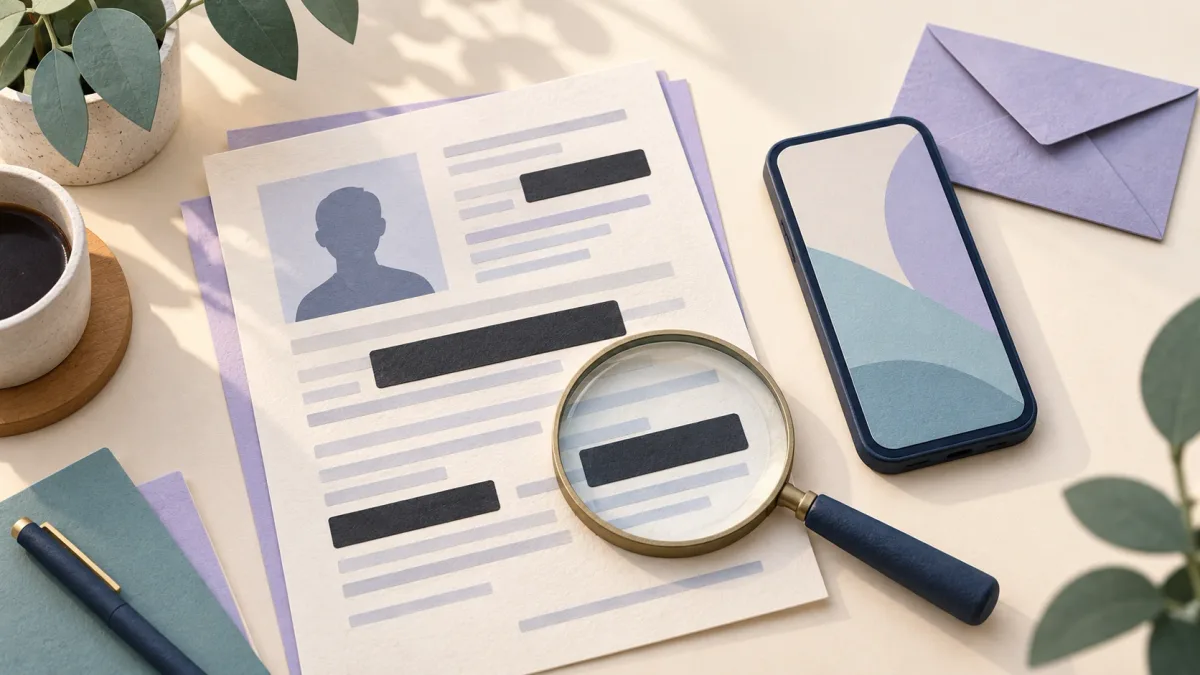
Safer sharing starts with deciding which information is needed, then checking the recipient and the actual file you will send.
When someone asks for a photo of your ID card, passport or another identity document in a chat, choosing a messenger is only part of the decision. You need to establish which information is necessary, who will receive it and exactly which version of the file you are sending. End-to-end encryption cannot take back unnecessary information that you have knowingly sent to an authorised recipient.
This guide offers a practical way to reduce disclosure. It is not an instruction to alter an official document or a guarantee against misuse. If a legitimate process requires a complete, unaltered copy, first verify that requirement and the official submission route. A redacted copy may not be accepted.
The cover is an AI-generated conceptual illustration, not a real identity document, a product interface or a technical demonstration of redaction.
1. Establish why the document is needed before preparing it
Ask the requester which part of the document they need and for what purpose. Do they need to verify one particular attribute, or do they genuinely need the whole image? Is there another official way to establish your identity? A familiar company name or an urgent message does not answer these questions.
You could send this short reply:
Please explain why you need this document, which information must remain readable and the official submission route. Will you accept a copy with unnecessary information redacted?
The principle of not providing more information than necessary also appears in the Dutch government's guidance on copies of identity documents. Its examples and legal rules concern the Netherlands. They do not establish a universal list of fields that every organisation will allow you to remove from Iranian or other identity documents.
2. Verify the recipient outside the message itself
If a request is unexpected, contact the organisation using a phone number or website you know independently. Do not rely on a contact number or link supplied in the suspicious message. This approach follows the FTC's guidance on deceptive text messages.
A display name, profile photo or padlock icon does not establish that the request is legitimate. Even comparing a chat's safety numbers helps check the communication keys; it does not prove that the account holder works for the organisation or is entitled to receive your document.
If an official document-submission portal exists, independently check its address and ownership, and consider using that accepted route. This does not mean that every page using HTTPS is automatically safe.
3. Work on a copy and match the redaction method to the file
Keep the original separately and create a clearly named copy for sending. Remove only information that is unnecessary for this request and that the recipient accepts being omitted. Review numbers, signatures, addresses, photos, the reverse side and other pages individually. None of these fields is always removable or always necessary.
A simple image: opaque replacement and a fresh export
In a static image, the selected area must actually be replaced with fully opaque pixels in the output. Do not rely on blur, pixelation or a translucent marker. After editing, create a fresh, simple output such as PNG or JPEG and reopen that output. Do not send the project file, layers or editing history. The ICO's technical guidance on redaction explains the difference between covering information visually and removing it reliably.
An image file extension alone does not guarantee that the file is clear of sensitive data. Information outside the selected area or stored in metadata needs separate attention.
PDF: a black rectangle is different from redaction
A black shape may simply sit over PDF text while the text underneath remains selectable or extractable. Use a feature explicitly designed for redaction or permanent content removal, apply the marked redactions and save the final file.
According to Adobe's documentation, removing visible content and sanitising hidden information are separate tasks. Check metadata, embedded content and hidden elements with the appropriate sanitisation feature in your tool. Simply converting a document to PDF or taking a screenshot does not, by itself, prove that all unwanted information has been removed.
Office documents: remember comments and tracked changes
If you plan to send a Word document or another office file, also check comments, tracked changes and author details. Microsoft's Document Inspector can inspect some of this information. It has limitations and is best used on a copy. An empty result does not replace a visual review of the file.
The same information may appear elsewhere
Covering a number in one corner is not enough if the same value appears elsewhere. Some documents repeat information in a machine-readable zone, barcode or QR code. For example, the Dutch identity-data authority explains that certain Dutch passports repeat an identity number in a QR code. Codes on other documents may contain different information.
If the recipient accepts it, you can add the intended purpose, recipient's name and date to the copy. This provides context for its use; the wording can be removed or recreated and is not a reliable barrier to copying. Do not use it instead of removing unnecessary information.
4. Inspect the final file, not just the editor's preview
Close the exported file and reopen it from its saved location. For an important document, a second review by someone you trust may catch a wrong-file selection or a missed page. Do not unnecessarily give more people the complete document just to obtain that review.
| What to check | What could be wrong |
|---|---|
| Every page and both sides of the document | A repeated number or address left visible elsewhere |
| Redacted areas at higher magnification | Readable characters at the edges or under a translucent covering |
| Selecting, searching and copying PDF text | Hidden text that remains extractable despite looking blacked out |
| Filename, properties and attachments | Extra identity information, comments or an embedded file |
| The thumbnail when attaching the file | Accidentally selecting the original instead of the reviewed output |
These are preliminary tests. Failing to find text through search or copy does not, by itself, prove complete sanitisation of a complex PDF. For highly sensitive documents, use tools and specialist help appropriate to that document type. Also check photo metadata and location information separately from visible content.
Do not upload a real identity document merely to try an unfamiliar online redaction tool. Start with a made-up file containing no personal information, and check where processing happens and the tool's retention policy.
5. Send the reviewed file in the correct conversation
Before sending, check the account name, conversation history and number of recipients again. If one person should receive the document, a work group or public channel is not a substitute for that specific conversation. A short caption stating the file's purpose is enough. Do not put information you removed from the image back into the message text.
According to Livara's current security documentation, files and photos are encrypted before upload in LVR1 direct chats and compatible LGS1 private groups. Check the state of the particular conversation: an incompatible legacy group may fall outside E2EE, and channels are public publishing spaces. The boundary between a public channel and a private chat matters when choosing where to send a document.
This protection does not redact the document itself or prevent an authorised recipient from saving or redistributing it. This article does not claim that Livara has a built-in redaction tool or removes unnecessary document data for you. For the file's delivery path, see the guide to encrypted photos and attachments.
6. Manage extra copies after sending
Record which version you sent, for what purpose and to whom. You do not need to copy all the identity information again to keep that record. Ask the recipient how long the file will be retained and whether it will be passed to anyone else.
Review temporary and unnecessary copies on your own devices, taking genuine record-retention needs into account. Deleting a chat or enabling disappearing messages does not prove that a recipient's downloaded file, screenshot or backup has also disappeared.
If you sent the file by mistake, using an available deletion option and asking the recipient to delete it may help, but neither guarantees recall. If you see signs of misuse, contact the relevant organisation or appropriate local authority through official channels. Do not simply wait for the message to disappear.
A short checklist before you press Send
- The purpose of the request and the necessary information are clear.
- I have independently verified the recipient and submission route.
- I worked on a copy and have not accidentally selected the original.
- The removal method suits the file type, and I have reviewed the final output.
- I checked other pages, codes, the filename and hidden information.
- I know the correct conversation and who can receive the file.
- I understand that I will not fully control every copy after delivery.
If any answer is unclear, pause before sending. A few minutes of checking now is easier than trying to recover every copy of a document after it has been shared.