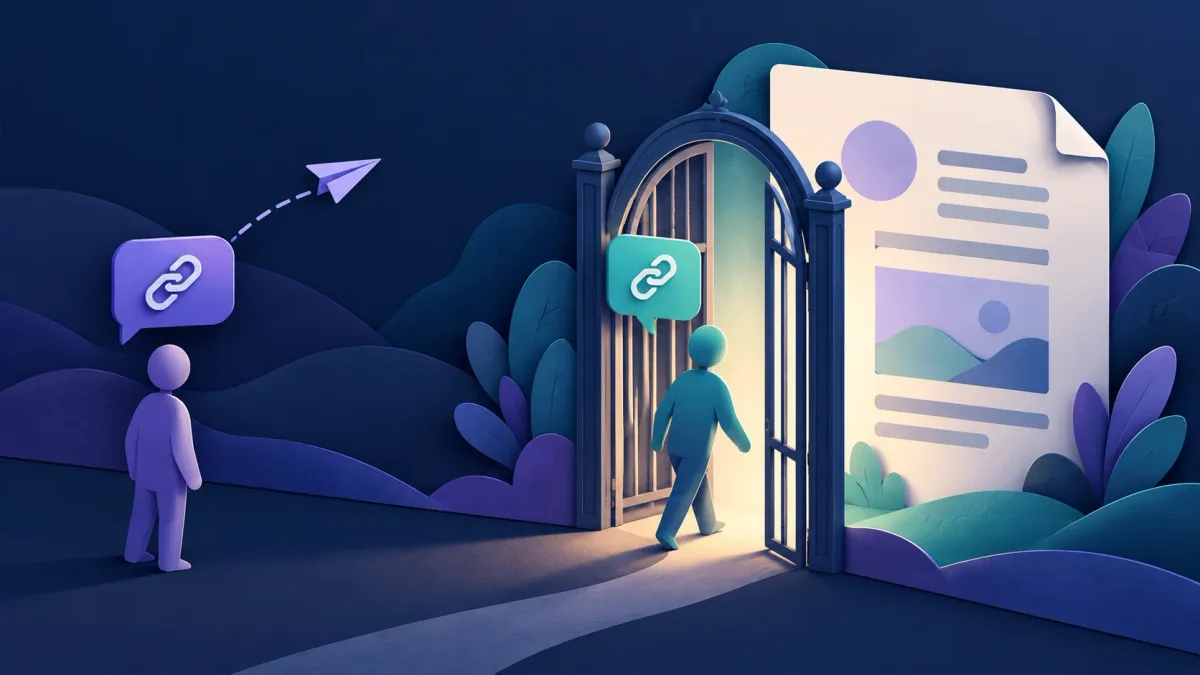
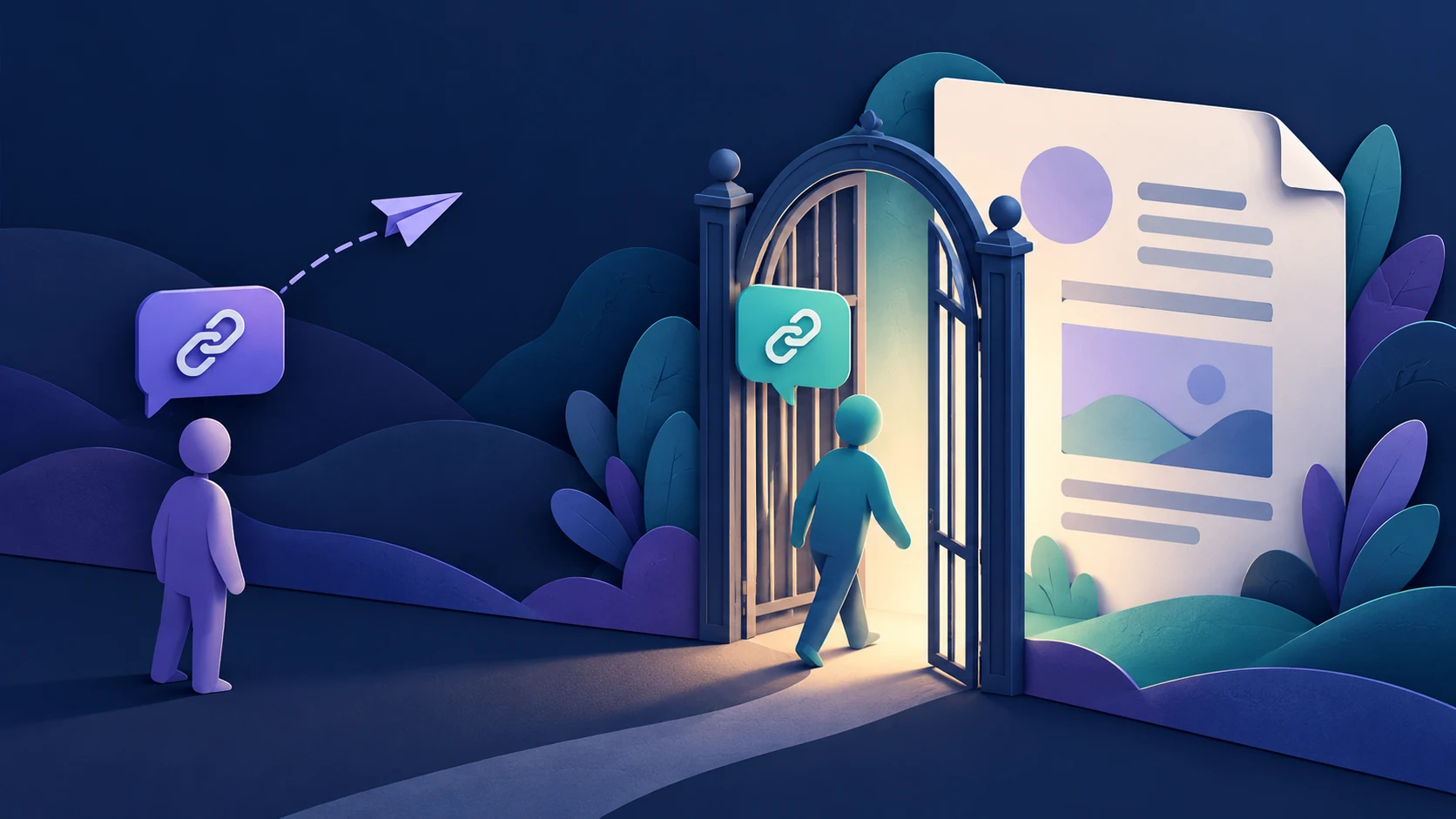
The chat protects the message; the document service decides who can open the link.
You send a document link to one person in an encrypted chat. They forward it to a group. Can the group open the document? The answer comes from the document service’s sharing permissions, not the privacy of the original conversation.
A message containing a link and the file at that destination have separate security boundaries. Sending the address through an end-to-end encrypted conversation does not change the destination’s access settings or automatically apply that chat’s encryption to the stored file. This is general sharing guidance, not a claim about a particular Livara integration.
1. Check the audience, not just the address
In Google Drive, Restricted means only people already granted access can open the file. Anyone with the link lets people who possess the address open it without signing into a Google Account. A forwarded link can therefore reach beyond your intended chat participants.
OneDrive and SharePoint similarly distinguish Anyone, People in your organization and Specific people links. An organization link is not a named-recipient link: forwarding can make it usable by other eligible organization members. A Specific people link requires authentication as a specified recipient; forwarding it does not grant an unrelated person access through that link.
That does not prove the unrelated person has no access at all. They may already have permission through another link, a group, a shared folder or a site. Review the item’s full access list rather than treating one restrictive link as a complete access audit.
2. Viewing, editing and downloading are separate decisions
Someone who needs to read a document rarely needs editing rights. Choose the least powerful role that supports the task, and check whether people with editing access can invite others or change permissions.
Do not equate “can view” with “cannot keep a copy.” Google provides controls for downloading, copying and printing in its sharing settings. Microsoft’s Block download is a separate option for supported view-only sharing links; availability depends on the account, file type and administrator settings. Its documented behavior limits recipients to viewing on the web and removes download, print and copy options.
These controls reduce convenient copying. They are not a promise that readable information cannot be photographed, transcribed or otherwise retained. Google explicitly notes that restrictions within Drive do not stop people sharing the content in other ways. Send only the information the recipient actually needs. Our related guide on encrypted chats and screenshots explains why visible information and recipient copies need separate consideration.
3. Use this before-send checklist
Before pasting the address into a conversation:
- Confirm the correct document and remove unnecessary private material from the shared version.
- Open the document service’s sharing panel and read the actual audience setting.
- For private collaboration, identify the intended recipients rather than choosing a broadly usable link for convenience.
- Select viewing or commenting instead of editing when that meets the need.
- Review existing people, groups, links and inherited folder or site access.
- Check available download controls and explain any limits to the recipient.
- Decide when access should end; use an available expiration setting or plan to remove access yourself.
The checklist is an editorial workflow, not a claim that every service exposes the same buttons or features. Work and school policies may restrict available choices.
4. Test with a harmless sample
For an unfamiliar sharing setup, use a sample document without sensitive data. Confirm that the intended recipient can open it using the expected account. Then check that an account without permission is refused access.
A signed-out window can help test anonymous access, but it does not test whether another signed-in colleague already has permission. Likewise, opening the link successfully in your own browser proves little about recipient access because you may be the owner.
Do not broaden permissions merely to clear an unexpected access error. First check whether the recipient is using the invited account. Review the real document’s settings separately before sending it; a successful sample test does not establish identical permissions elsewhere.
5. If the link was sent to the wrong place
Change access at the document service. Deleting the chat message is not the same as revoking the destination link.
In OneDrive and SharePoint, Manage access can show sharing links and direct access; inherited folder or site permissions may require attention at their source. Removing one link does not necessarily remove those other routes. Google Drive likewise provides removal and restriction controls, with folder permissions relevant to the result.
Check the resulting permissions and test again where practical. Do not promise to recover copies already downloaded, printed or captured. Revoking server access controls future access through the affected permission; it does not remotely erase an independent copy.
Quick questions
Does an encrypted chat make an “Anyone” link restricted? No. The chat’s protection does not rewrite the document service’s audience setting.
Can a recipient forward a Specific people link? They can forward the text. That action alone does not authorize an unspecified recipient through that link. Other existing permissions remain relevant.
Does disabling downloads guarantee no copies? No. Treat it as a useful control with limits, not protection against every way of retaining visible information.
What is the safest useful habit? Verify the audience, choose the minimum role, and review every access route before sharing—not only after a link escapes the original conversation.
Sources
- Google Drive Help: Share and manage access to files and folders in Google Drive.
- Microsoft Learn: How shareable links work in OneDrive and SharePoint in Microsoft 365.
- Microsoft Support: Share files and folders in Microsoft OneDrive.
- Microsoft Support: Manage sharing and permissions in OneDrive and SharePoint.
- Microsoft Support: Block downloads for view-only files in SharePoint and OneDrive.